Settings
Ostinato
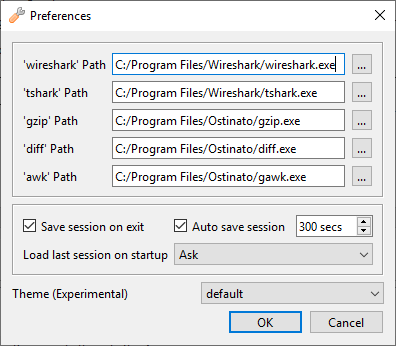
The Ostinato GUI settings can accessed from File > Preferences.
Drone
Drone settings are specified in a .ini file. This file is read only once at startup and never written to by the application (i.e. it is expected to be user created and edited).
drone.ini Location
drone.ini is located at one of the below locations (searched in given order) -
C:\ProgramData\Ostinato\drone.iniC:\Users\<USER>\AppData\Local\Ostinato\drone.ini
/Library/Preferences/Ostinato/drone.ini~/Library/Preferences/Ostinato/drone.ini
/etc/Ostinato/drone.ini~/.config/Ostinato/drone.ini
You can run drone -v to see the INI file used.
<path-to-drone-executable>/drone.ini%APPDATA%\Ostinato\drone.ini%APPDATA%\Ostinato.ini%COMMON_APPDATA%\Ostinato\Ostinato.ini%COMMON_APPDATA%\Ostinato.ini
The %APPDATA% path is usually C:\Documents and Settings\User Name\Application Data; the %COMMON_APPDATA% path is usually C:\Documents and Settings\All Users\Application Data.
<path-to-drone-executable>/drone.ini$HOME/.config/Ostinato/drone.ini$HOME/.config/Ostinato.ini/etc/xdg/Ostinato/drone.ini/etc/xdg/Ostinato.ini
The .ini file contents are case-sensitive and the format is -
[General]
LicenseKey=
RateAccuracy=
EmulationEngine=
Telemetry=
...

[RpcServer]
Address=

[PortList]
Include=
Exclude=
EthernetOnly=
Note
Changes to drone.ini take effect only after restarting the Drone.
General
LicenseKey
Available release 2.0 onwards
Set this to your License Key.
RateAccuracy
To ensure that the actual transmit rate is as close as possible to the configured transmit rate, Drone runs a busy-wait loop. While this provides the maximum accuracy possible, the CPU utilization is 100% while the transmit is on. You can however, sacrifice the accuracy to reduce the CPU load.
Supported values currently are High (default), Low
EmulationEngine
Available release 2.0 onwards
Select the engine which provides device/protocol emulation. Different engines may support different features/protocols. See the emulation docs for more details.
Supported values currently are Native (default), Docker
Telemetry
Starting v2.1, Ostinato collects pseudonymous product usage telemetry to help improve the product. To disable, set Telemetry to false or 0.
For details about the information collected, see the Privacy Policy.
RpcServer
Address
By default, the Drone agent will listen on all interfaces and local IPv4 adresses for incoming connections from clients.
Specify a single IPv4 or IPv6 address if you want to restrict that.
To listen on any IPv6 address, use ::.
PortList
Include
Exclude
Use the PortList Include/Exclude list to filter the list of ports that drone manages.
Both Include and Exclude are comma-separated glob patterns which match port names (on Windows, port description instead of port name is matched).
For a port to pass the filter and appear on the port list managed by drone, it should be allowed by the Include list and not disallowed by the Exclude List.
An empty Include list matches all ports (i.e. all ports are allowed).
An empty Exclude list matches no ports (i.e. no ports are disallowed)
e.g. to filter out usbmon ports -
[PortList]
Include=
Exclude=usbmon*
or e.g. to have drone work on only eth ports and loopback ports, but not on eth0 -
[PortList]
Include=eth*, lo*
Exclude=eth0
EthernetOnly
Starting v2.0 only Ethernet encapsulation ports are listed by Drone. To see all ports, irrespective of encapsulation, set EthernetOnly to false or 0.